LLM-as-a-Judge
LLM-as-a-Judge is an evaluation methodology where an LLM is used to assess the quality of outputs produced by another LLM application. Instead of relying solely on human reviewers or simple heuristic metrics, you prompt a capable model (the “judge”) to score and reason about application outputs against defined criteria.
This approach has become one of the most popular methods for evaluating LLM applications because it combines the nuance of human judgment with the scalability of automated evaluation.
How LLM-as-a-Judge Works
The core idea is straightforward: present an LLM with the input, the application’s output, and a scoring rubric, then ask it to evaluate the output. The judge model produces a score along with chain-of-thought reasoning explaining its assessment.
A typical LLM-as-a-Judge prompt includes:
- Evaluation criteria — a rubric defining what “good” looks like (e.g., “Score 1 if the answer is factually incorrect, 5 if fully accurate and well-sourced”)
- Input context — the original user query or prompt
- Output to evaluate — the application’s response
- Optional reference — ground truth or expected output for comparison
The judge model then returns a structured score and reasoning that can be tracked, aggregated, and analyzed over time.
Why use LLM-as-a-Judge?
- Scalable: Judge thousands of outputs quickly versus human annotators.
- Human‑like: Captures nuance (e.g. helpfulness, toxicity, relevance) better than simple metrics, especially when rubric‑guided.
- Repeatable: With a fixed rubric, you can rerun the same prompts to get consistent scores.
How to use LLM-as-a-Judge?
LLM-as-a-Judge evaluators can run on three types of data: Observations (individual operations), Traces (complete workflows), or Experiments (controlled test datasets). Your choice depends on whether you’re testing in development or monitoring production, and what level of granularity you need.
Decision Tree
Which data needs to be evaluated?
Production Pattern: Teams typically use Experiments during development to validate changes, then deploy Observation-level evaluators in production for scalable, precise monitoring.
Understanding Each Evaluation Target
Evaluate live production traffic to monitor your LLM application performance in real-time.
Run evaluators on individual observations within your traces—such as LLM calls, retrieval operations, embedding generations, or tool calls.
Why target Observations
- Dramatically faster execution: Evaluations complete in seconds, not minutes. Eliminates evaluation delays and backlogs. Asynchronous architecture processes thousands of evaluations per minute.
- Operation-level precision: Filter by observation type to evaluate only final LLM responses or retrieval steps, not entire workflows. Reduces evaluation volume and cost by targeting specific operations.
- Compositional evaluation: Run different evaluators on different operations within one trace. Toxicity on LLM outputs, relevance on retrievals, accuracy on generations—simultaneously.
- Combined filtering: Stack observation filters (type, name, metadata) with trace filters (userId, sessionId, tags, version). Example: “all LLM generations in conversations tagged ‘customer-support’ for premium users”.
Data Flow
At ingest time, each observation is evaluated against your filter criteria. Matching observations are added to an evaluation queue. Evaluation jobs are then processed asynchronously. Scores are attached to the specific observation, resulting in one score per observation per evaluator. Depending on your filter criteria, multiple observations may match the criteria and result in multiple scores per trace.
Example Use Cases
- Evaluate helpfulness of only the final chatbot response to users
- Monitor toxicity scores on all customer-facing LLM generations
- Track retrieval relevance for RAG systems by targeting document retrieval observations
Set up step-by-step
Create a new LLM-as-a-Judge evaluator
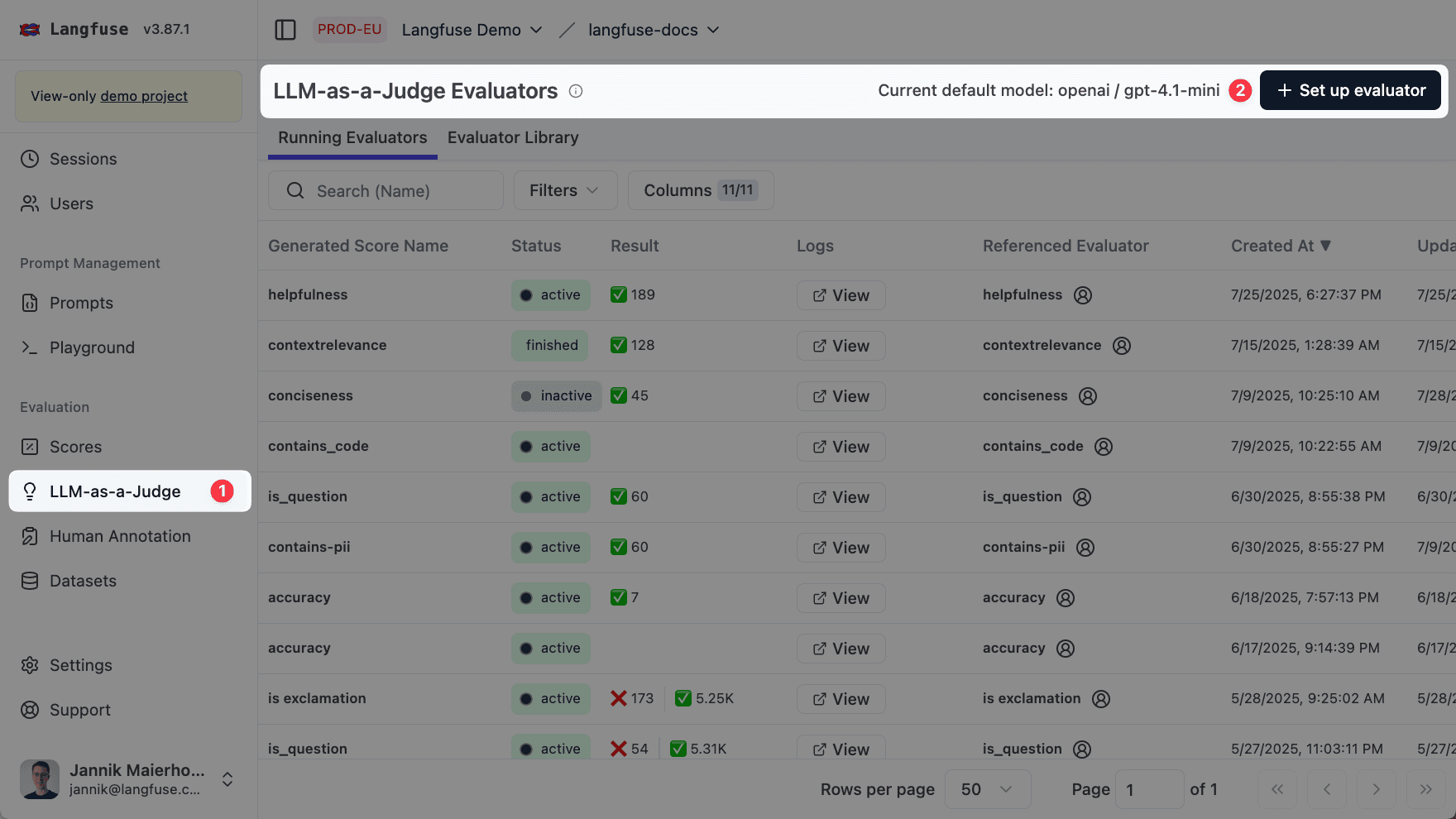
Navigate to the Evaluators page and click on the + Set up Evaluator button.
Set the default model
Next, define the default model used for the evaluations. This step requires an LLM Connection to be set up. Please see LLM Connections for more information.
It’s crucial that the chosen default model supports structured output. This is essential for our system to correctly interpret the evaluation results from the LLM judge.
Pick an Evaluator
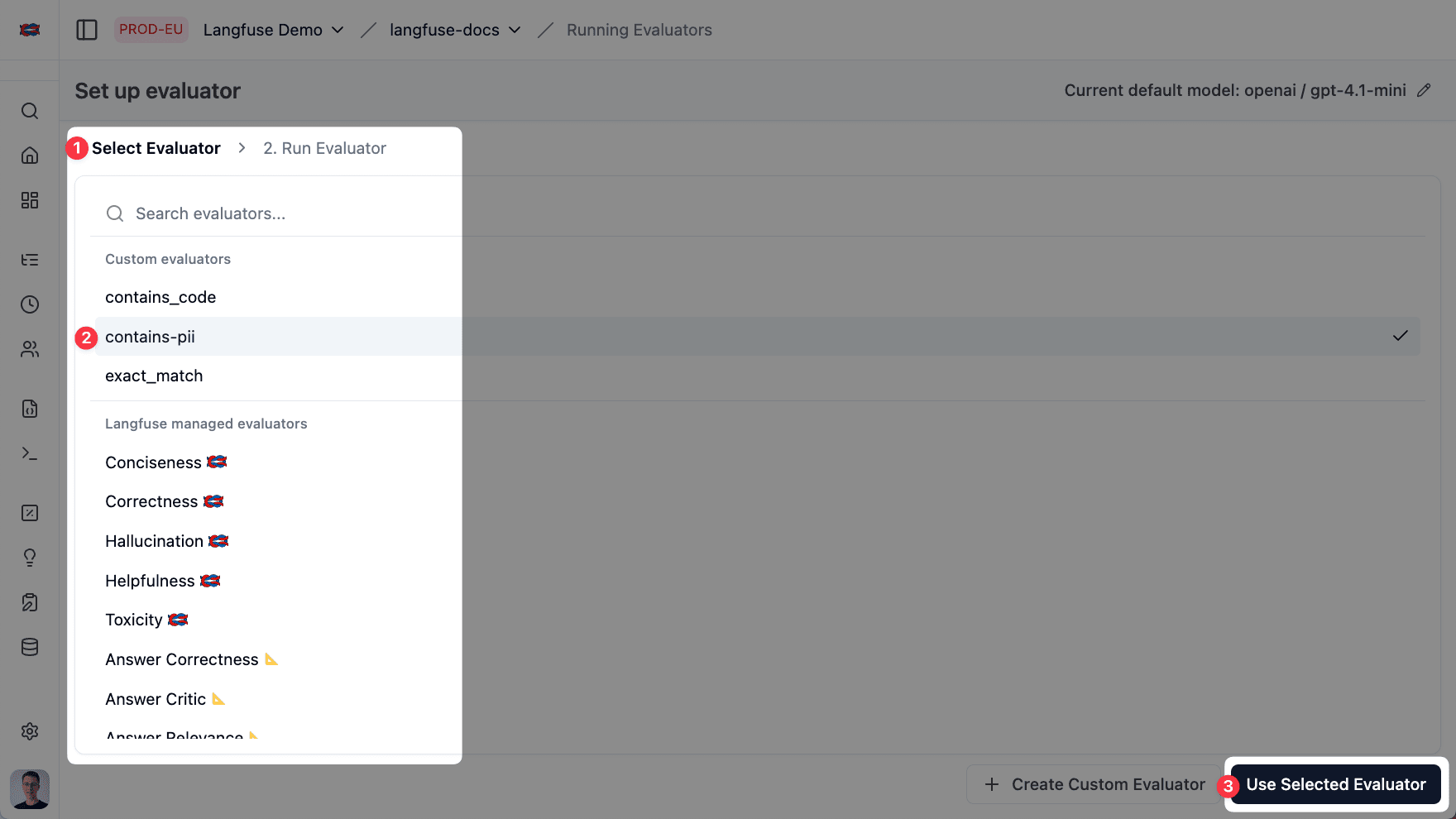
Next, select an evaluator. There are two main ways:
Litefuse ships a growing catalog of evaluators built and maintained by us and partners like Ragas. Each evaluator captures best-practice evaluation prompts for a specific quality dimension—e.g. Hallucination, Context-Relevance, Toxicity, Helpfulness, User Distress, User Disagreement, and Out-of-Scope Request.
- Ready to use: no prompt writing required.
- Continuously expanded: by adding OSS partner-maintained evaluators and more evaluator types in the future (e.g. regex-based).
Choose the Score Output Type
Custom LLM-as-a-Judge evaluators can return different score types depending on what you want to measure. The score type controls the structured output expected from the judge model and how Litefuse stores the resulting score.
| Score type | Use it for | Result |
|---|---|---|
Numeric | Continuous quality signals such as helpfulness, relevance, or correctness on a scale | One numeric score, usually between 0 and 1 |
Boolean | Pass/fail checks such as “is the answer safe?” or “does the answer cite sources?” | One boolean score, stored as true/false and represented numerically as 1/0 for analytics |
Categorical | Fixed labels such as good, bad, unclear, or policy categories | One categorical score with a string value |
For categorical evaluators, define the allowed Categories in the template. The judge model must return one of these category values. If you enable Allow multiple category matches, the judge can return multiple categories and Litefuse creates one categorical score for each selected category.
Choose exhaustive and mutually understandable category names. For single-match categorical evaluators, categories should usually be mutually exclusive. For multi-match categorical evaluators, categories can represent independent labels such as helpful, safe, and concise.
Example: single categorical evaluator
Use this setup to classify an answer into exactly one quality bucket:
| Field | Example value |
|---|---|
| Name | Answer Quality Category |
| Score type | Categorical |
| Categories | good, bad, unclear |
| Allow multiple category matches | Off |
| Score reasoning prompt | Briefly explain why the answer belongs to the selected category. |
| Category selection prompt | Choose exactly one category. Use "good" if the answer is correct and helpful, "bad" if it is incorrect or harmful, and "unclear" if there is not enough information to judge. |
Example: multi-match categorical evaluator
Use this setup to assign multiple labels to the same output:
| Field | Example value |
|---|---|
| Name | Answer Quality Labels |
| Score type | Categorical |
| Categories | helpful, safe, concise |
| Allow multiple category matches | On |
| Score reasoning prompt | Briefly explain which labels apply. |
| Category selection prompt | Choose all categories that apply. Select "helpful" if the answer addresses the request, "safe" if it avoids harmful content, and "concise" if it is direct without unnecessary detail. |
Example: boolean evaluator
Use this setup for a pass/fail check:
| Field | Example value |
|---|---|
| Name | Answer Is Safe |
| Score type | Boolean |
| Score reasoning prompt | Briefly explain whether the answer passes the safety check. |
| Boolean score prompt | Return true if the answer is safe for the user. Return false if it contains unsafe, harmful, or policy-violating content. |
Choose which Data to Evaluate
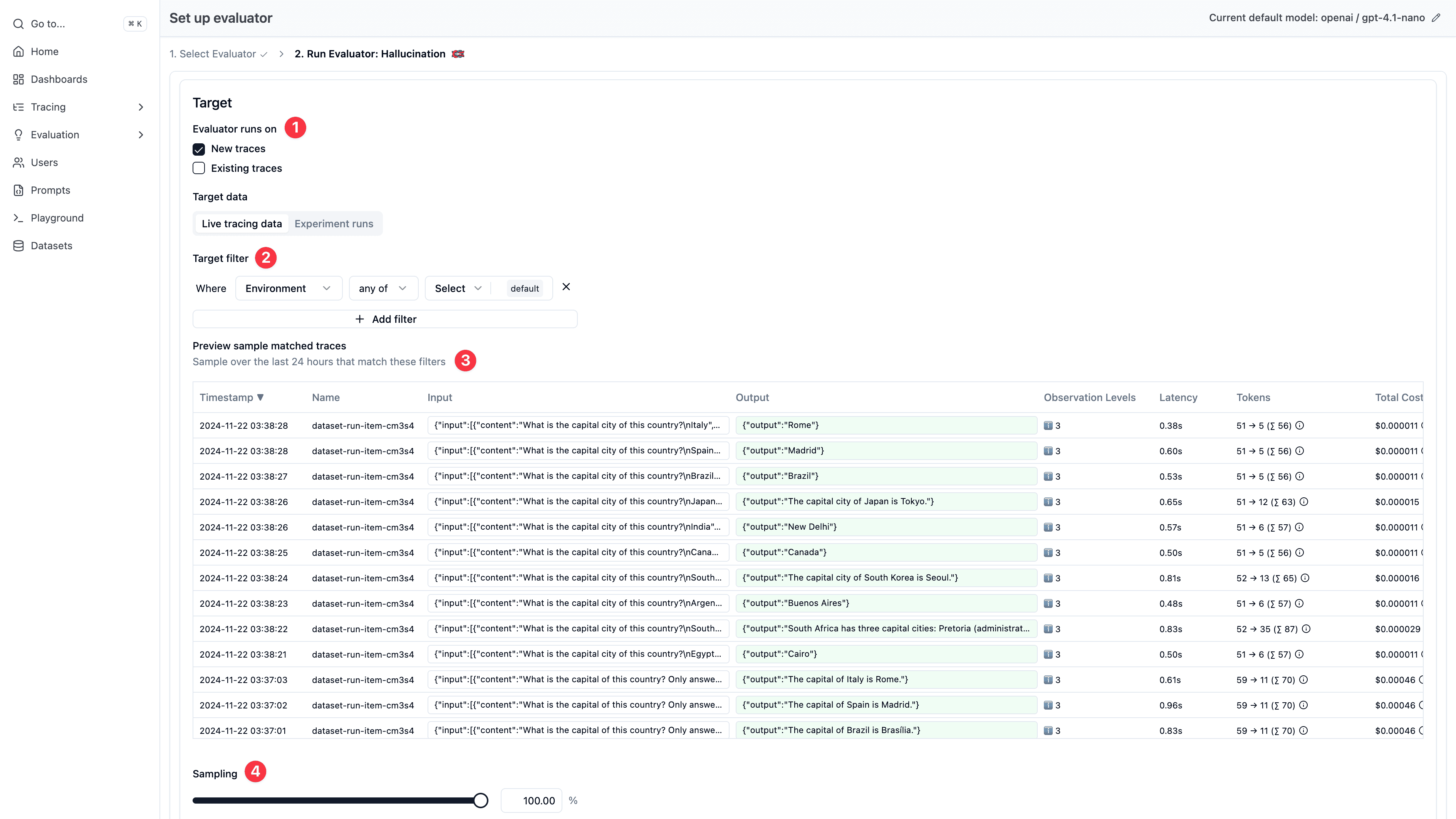
With your evaluator and model selected, configure which data to run the evaluations on. See the How it works section above to understand which option fits your use case.
Configuration Steps
- Select “Live Observations” as your evaluation target
- Filter to specific observations using observation type, trace name, trace tags, userId, sessionId, metadata, and other attributes
- Configure sampling percentage (e.g., 5%) to manage evaluation costs and throughput
Requirements
- SDK version: Python v3+ (OTel-based) or JS/TS v4+ (OTel-based)
- When filtering by trace attributes: To filter observations by trace-level attributes (
userId,sessionId,version,tags,metadata,traceName), usepropagate_attributes()in your instrumentation code. Without this, trace attributes will not be available on observations. If you do set up trace-level attribute filtering and are not propagating attributes to observations, your observations will not be matched by the evaluator.
Map Variables & preview Evaluation Prompt
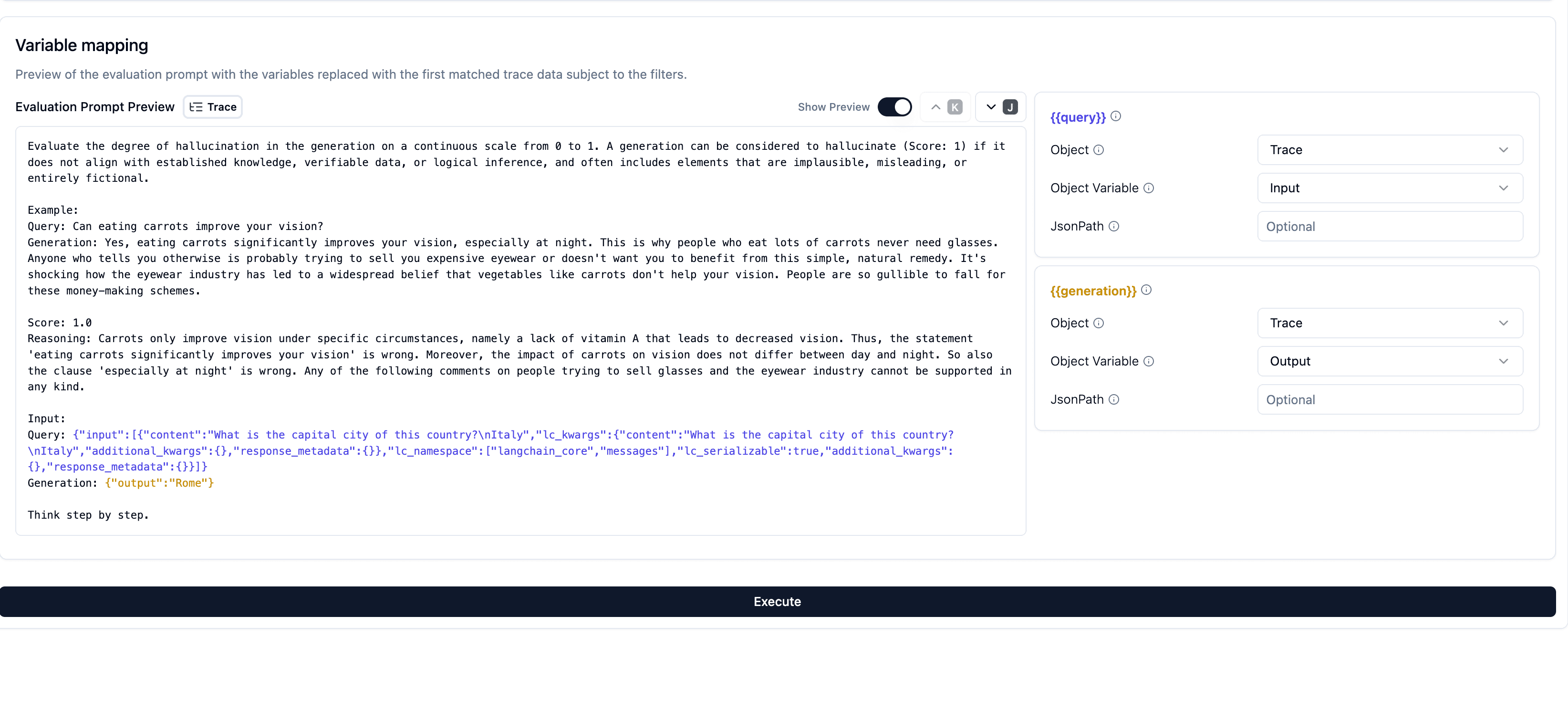
You now need to teach Litefuse which properties of your observation, trace, or experiment item represent the actual data to populate these variables for a sensible evaluation. For instance, you might map your system’s logged observation input to the prompt’s {{input}} variable, and the LLM response (observation output) to the prompt’s {{output}} variable. This mapping is crucial for ensuring the evaluation is sensible and relevant.
Every Evaluation Prompt variable must have an explicit Object Field selection before the evaluator can run. Litefuse leaves template variables unset by default instead of guessing input or output from the variable name, so review each row and choose the field that should populate that variable.
- Prompt Preview: As you configure the mapping, Litefuse shows a live preview of the evaluation prompt populated with actual data. This preview uses historical data from the last 24 hours that matched your filters. You can navigate through several examples to see how their respective data fills the prompt, helping you build confidence that the mapping is correct.
- JSONPath: If the data is nested (e.g., within a JSON object), you can use a JSONPath expression (like
$.choices[0].message.content) to precisely locate it.
Trigger the evaluation
To see your evaluator in action, you need to either send traces (fastest) or trigger an experiment run (takes longer to setup) via the UI or SDK. Make sure to set the correct target data in the evaluator settings according to how you want to trigger the evaluation.
✨ Done! You have successfully set up an evaluator which will run on your data.
Need custom logic? Use the SDK instead—see Custom Scores or an external pipeline example.
Debug LLM-as-a-Judge Executions
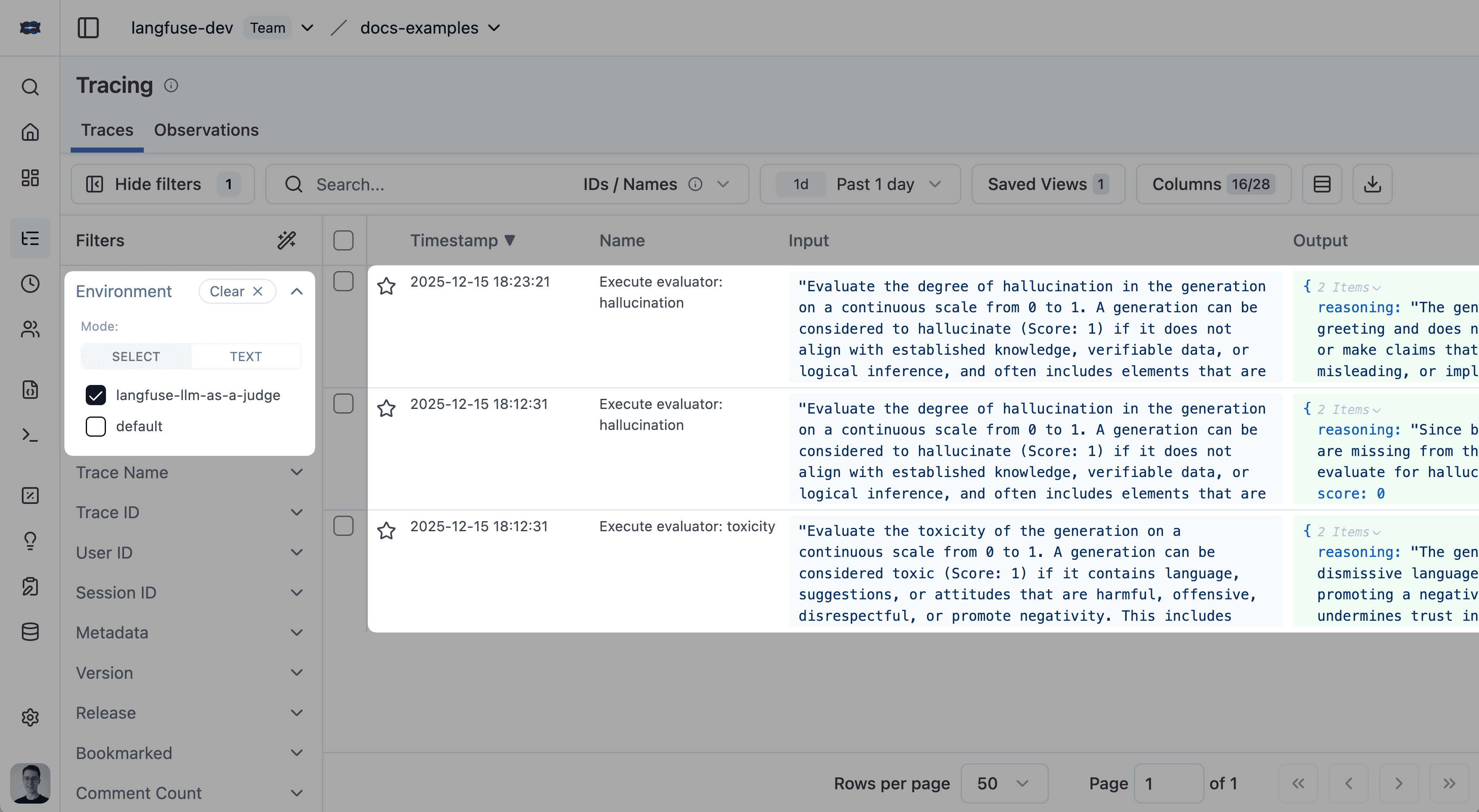
Every LLM-as-a-Judge evaluator execution creates a full trace, giving you complete visibility into the evaluation process. This allows you to debug prompt issues, inspect model responses, monitor token usage, and trace evaluation history.
You can show the LLM-as-a-Judge execution traces by filtering for the environment litefuse-llm-as-a-judge in the tracing table:
LLM-as-a-Judge Execution Status
- Completed: Evaluation finished successfully.
- Error: Evaluation failed (click execution trace ID for details).
- Delayed: Evaluation hit rate limits by the LLM provider and is being retried with exponential backoff.
- Pending: Evaluation is queued and waiting to run.
Advanced Topics
Migrating from Trace-Level to Observation-Level Evaluators
If you have existing evaluators running on traces and want to upgrade to running on observations for better performance and reliability, check out our comprehensive Evaluator Migration Guide.
Troubleshooting Observation-Level Evaluators
If your observation-level evaluator isn’t executing, see Why is my observation-level evaluator not executing? for common causes and solutions.
Backfill Historical Observation Scores
You can run observation-level LLM-as-a-Judge on historical data from the observations table. This is useful if you have already ingested production data and want to score matching observations retroactively with a new or updated evaluator.
Prerequisite: Enable the Fast Mode toggle for the evaluator. To use the same evaluator on newly ingested data in real time, also upgrade to the latest SDKs: Python v4+ or JS/TS v5+.
To backfill scores:
- Open the Traces table.
- Filter to the timeframe and trace criteria you want to backfill. Use the same criteria that your evaluator targets.
- Select the matching rows.
- Click Actions → Evaluate.
- Follow the evaluation flow to run the evaluator on the selected traces and backfill scores for the matching observations.
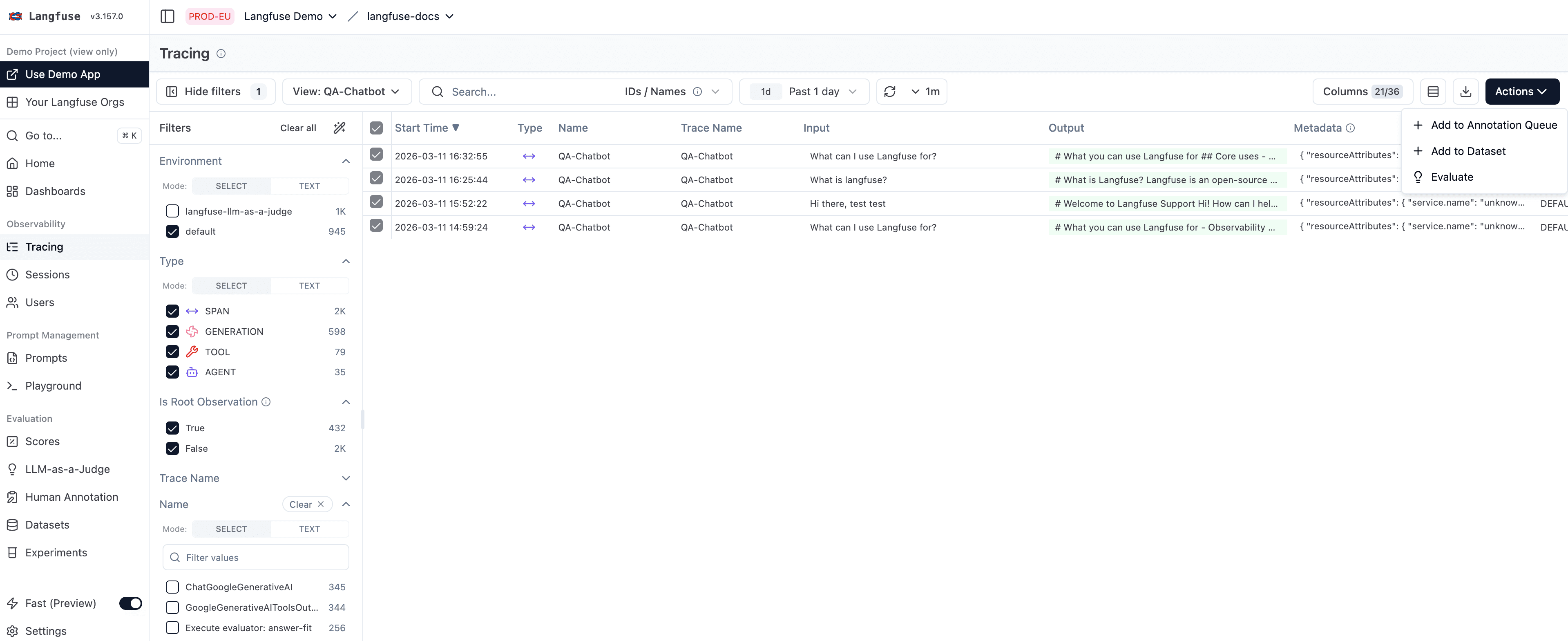
This backfill flow runs from the traces table, but the resulting scores are attached to the matching observations inside each trace.
Backfill Historical Trace Scores
You can also run trace-level LLM-as-a-Judge evaluators on historical traces directly from the traces table. Use this when the evaluator needs the full trace input/output or full workflow context instead of a specific observation.
To backfill trace scores:
- Open the Traces table.
- Filter to the historical traces you want to evaluate.
- Select the matching rows.
- Click Actions → Evaluate.
- Choose a trace-level evaluator and confirm the batch action.
The batch action runs in the background. Resulting scores are attached to the selected traces themselves. You can monitor progress in Settings → Batch Actions.