在 Litefuse 中追踪 Google Gemini 模型
本 notebook 介绍如何使用 Litefuse 和 Google GenAI SDK 追踪和观测 Google Gemini 模型。
什么是 Google Gemini? Google Gemini 是 Google 的多模态生成模型家族(涵盖文本、图像、音频、视频、代码),通过 Gemini API 和 Vertex AI 提供,并提供 Flash、Pro 等不同档位以满足不同的速度/质量需求。
什么是 Google GenAI SDK? Google GenAI SDK 是一个统一的客户端库(Python/JavaScript),它简化了对 Gemini 的调用——处理认证(API Key 或 ADC)、流式、工具/函数调用以及安全性,让你可以用几行代码就完成模型集成。
什么是 Litefuse? Litefuse 是一个用于 LLM 可观测性和监控的开源平台。它通过捕获元数据、prompt 详情、token 用量、延迟等信息,帮助你追踪和监控 AI 应用。
第一步:安装依赖
开始之前,请在你的 Python 环境中安装所需的依赖包:
%pip install google-genai openai langfuse openinference-instrumentation-google-genai第二步:配置 Langfuse SDK
接下来,设置你的 Litefuse API Key。你可以通过注册免费的 Litefuse Cloud 账户或自托管 Litefuse 来获取这些密钥。这些环境变量对于 Langfuse 客户端进行身份认证并向你的 Litefuse 项目发送数据来说至关重要。
同时设置你的 Google Vertex API 凭据,这里使用的是来自 service account 密钥文件的 Application Default Credentials (ADC)。
import os

# Get keys for your project from the project settings page: https://litefuse.cloud
os.environ["LANGFUSE_PUBLIC_KEY"] = "pk-lf-..."
os.environ["LANGFUSE_SECRET_KEY"] = "sk-lf-..."
os.environ["LANGFUSE_BASE_URL"] = "https://litefuse.cloud"

# Your Google Gemini API key
os.environ["GOOGLE_API_KEY"] = "***"
设置好环境变量后,我们就可以初始化 Langfuse 客户端了。get_client() 会使用环境变量中提供的凭据初始化 Langfuse 客户端。
from langfuse import get_client

# Initialise Langfuse client and verify connectivity
langfuse = get_client()
assert langfuse.auth_check(), "Langfuse auth failed - check your keys ✋"
第三步:OpenTelemetry 插桩
使用 GoogleGenAIInstrumentor 库包装 Google GenAI SDK 调用,并将 OpenTelemetry span 发送到 Litefuse。
from openinference.instrumentation.google_genai import GoogleGenAIInstrumentor

GoogleGenAIInstrumentor().instrument()
第四步:运行示例
from google import genai

client = genai.Client()

response = client.models.generate_content(
    model="gemini-2.5-flash",
    contents="What is Litefuse?",
)
print(response.text)
# Streaming Example
for chunk in client.models.generate_content_stream(
model="gemini-2.5-flash",
contents="What is Litefuse?",
):
print(chunk.text, end="", flush=True)
print() # newline after streaming在 Litefuse 中查看 trace
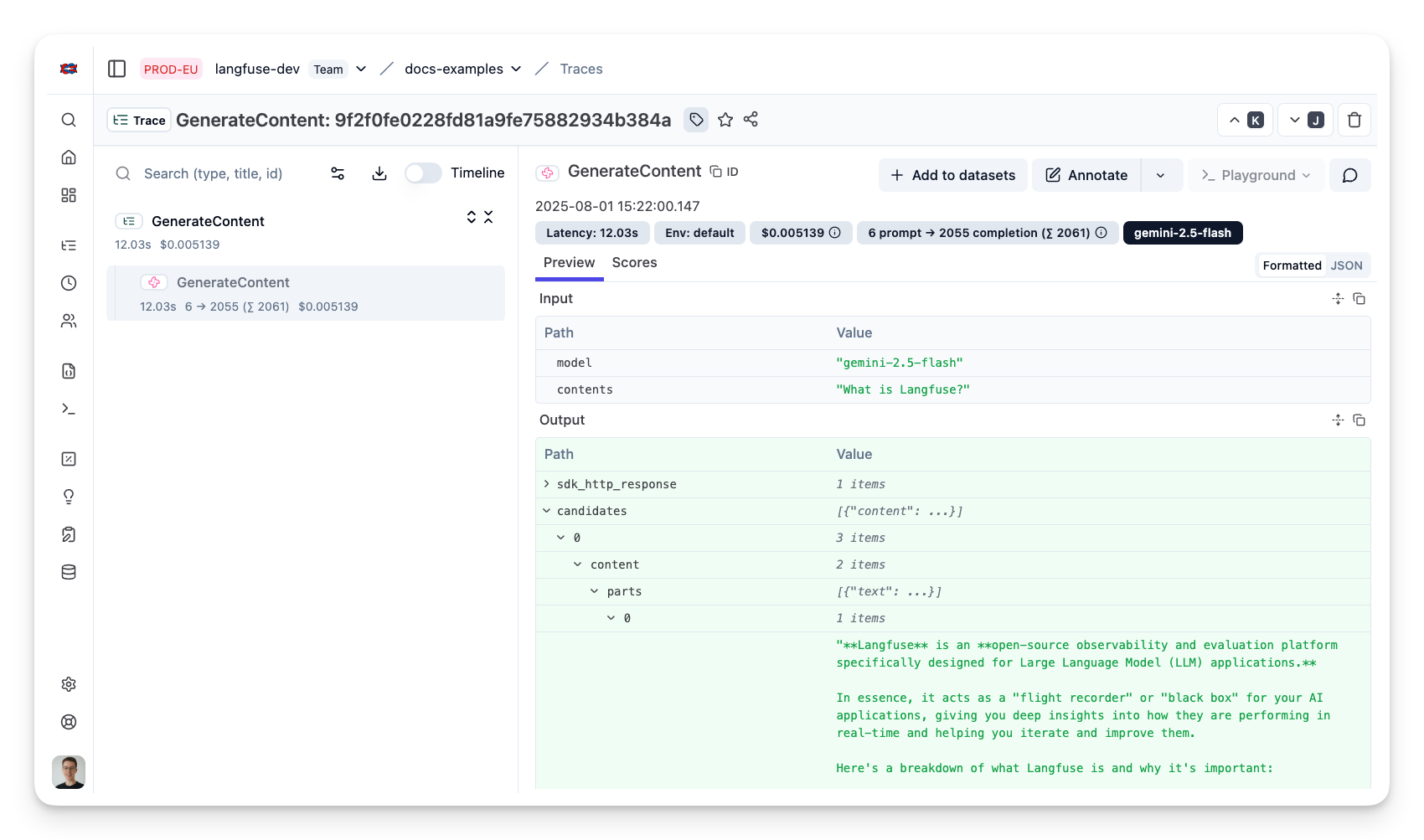
执行应用后,前往你的 Litefuse Trace Table。你将看到应用执行的详细 trace,包括 Agent 对话、LLM 调用、输入、输出和性能指标等信息。
Interoperability with the Python SDK
You can use this integration together with the Litefuse SDKs to add additional attributes to the observation.
The @observe() decorator provides a convenient way to automatically wrap your instrumented code and add additional attributes to the observation.
from langfuse import observe, propagate_attributes, get_client

langfuse = get_client()

@observe()
def my_llm_pipeline(input):
    # Add additional attributes (user_id, session_id, metadata, version, tags) to all spans created within this execution scope
    with propagate_attributes(
        user_id="user_123",
        session_id="session_abc",
        tags=["agent", "my-observation"],
        metadata={"email": "user@litefuse.ai"},
        version="1.0.0"
    ):

        # YOUR APPLICATION CODE HERE
        result = call_llm(input)

        return result

# Run the function
my_llm_pipeline("Hi")
Learn more about using the Decorator in the Langfuse SDK instrumentation docs.
Troubleshooting
No observations appearing
First, enable debug mode in the Python SDK:
export LANGFUSE_DEBUG="True"Then run your application and check the debug logs:
- OTel observations appear in the logs: Your application is instrumented correctly but observations are not reaching Litefuse. To resolve this:
- Call
langfuse.flush()at the end of your application to ensure all observations are exported. - Verify that you are using the correct API keys and base URL.
- Call
- No OTel spans in the logs: Your application is not instrumented correctly. Make sure the instrumentation runs before your application code.
Unwanted observations in Litefuse
The Langfuse SDK is based on OpenTelemetry. Other libraries in your application may emit OTel spans that are not relevant to you. These still count toward your billable units, so you should filter them out. See Unwanted spans in Litefuse for details.
Missing attributes
Some attributes may be stored in the metadata object of the observation rather than being mapped to the Litefuse data model. If a mapping or integration does not work as expected, please raise an issue on GitHub.
Next Steps
Once you have instrumented your code, you can manage, evaluate and debug your application: